
All features
Route Optimizer
Upload the orders and the crew, and get every technician’s best route — split by geography, saved one technician at a time.
Import
The customer, their address and the time the job is expected to take.
Optimize
Every order for a city, in a queue over the map.
Finalize
Finalize a technician’s route, or drag an order to another technician covering the area.
Step 1 — Import your orders
Bring in the day’s orders, pick the service date and start time, and choose the crew.
Route Optimizer
Set up the day in four steps
Step 1
Import the orders
The day’s orders as a CSV — no IDs or coordinates needed
Step 2
Pick the date
The day the orders take place
Step 3
Set the start time
When everyone’s first order starts
Step 4
Choose the crew
From the roster or bulk employee numbers
455 orders · 15 technicians · every route starts from home
Step 2 — Schedule and assign
Work the day by area: finalize each technician’s route, or drag an order to another technician covering the area.
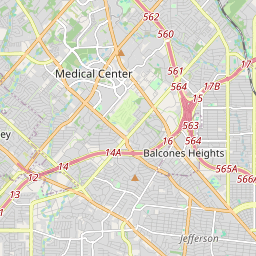
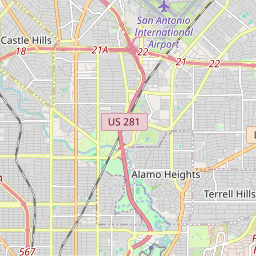
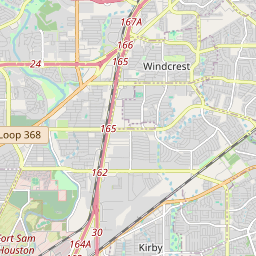
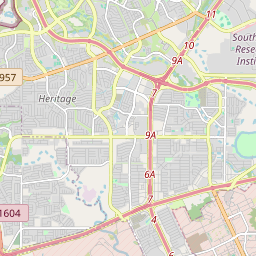
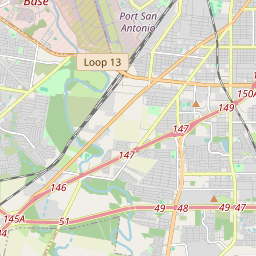
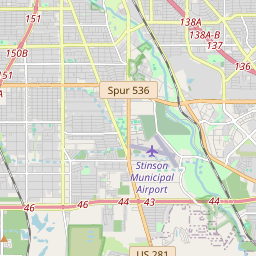
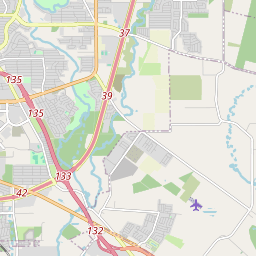
Live map · San Antonio, TX
4 technicians on route

Route impact
Drive −6.1 mi
Drive time −18 min
Run the day, not the spreadsheet.
Tell us where your orders live and we’ll walk you through RiteRoute on your own data.
Contact us